
Search Indexing — Salesforce Commerce Cloud

Introduction
In this eCommerce era, you might have purchased from multiple platforms. They promote best-selling items, the latest launch, latest promotions on their home page.
How often do you use the search bar to find your required product?
How often do you need to adjust/change search keywords to find the related item you are looking for desperately?
How quickly the website gives you the result and how much effective is the result?
These are the crucial things we face while using any eCommerce site. Based on the well-designed platform the answers to the above questions will differ.
When you use any eCommerce site next time, try giving points out of 5 for the above questions, and you will find how much better the site is.
In the Salesforce Commerce Cloud platform here comes “Search Indexing”. The search indexing feature indexes the documents which makes searching faster as it does not need to query the database for every search request.
Table of Contents
- Importance of Search Indexing
- How Salesforce Commerce Cloud Handles Search
- Search Result Page Behavior
- Role and Permission
- Accessing the Search Indexing in BM
- What Is Included in Search Indexing
- Search Indexing Configuration and Behavior
- Production and Staging Considerations
- Troubleshoot
- Useful Links
Importance of Search Indexing
To find the relevant pages for search engines one important setting is — setting up hostname and SEO. You can find more details about the hostname here
How Salesforce Commerce Cloud Handles Search
When the user enters the keyword to search, Salesforce Commerce Cloud will do:
- If a redirect is found, then take to the redirection page.
- Find the content from the index and display products or articles matching the search term.
- Suggest a term if the provided search keyword is the wrong spelling.
Search Result Page Behavior
You also should take care of the behavior of the search result page as well:
- What are searchable attributes in product and content
- Enable/disable product and content for index
- Empty result page
- Search refinement
Role and Permission
The merchandising team should have access to all required places for configuring indexing and its behavior, such as products, catalogs, content assets, search dictionaries, stop words, synonyms, hypernyms, common phrases, search suggestions, sorting rules, etc.
Accessing BM and Having Roles in Salesforce Commerce Cloud
It is important to control who has access to which functions on the Salesforce Commerce Cloud platform to avoid any misadventure on the important feature.
Accessing the Search Indexing in BM
If you have proper permissions in the Business Manager, you would be able to access search options as shown below.
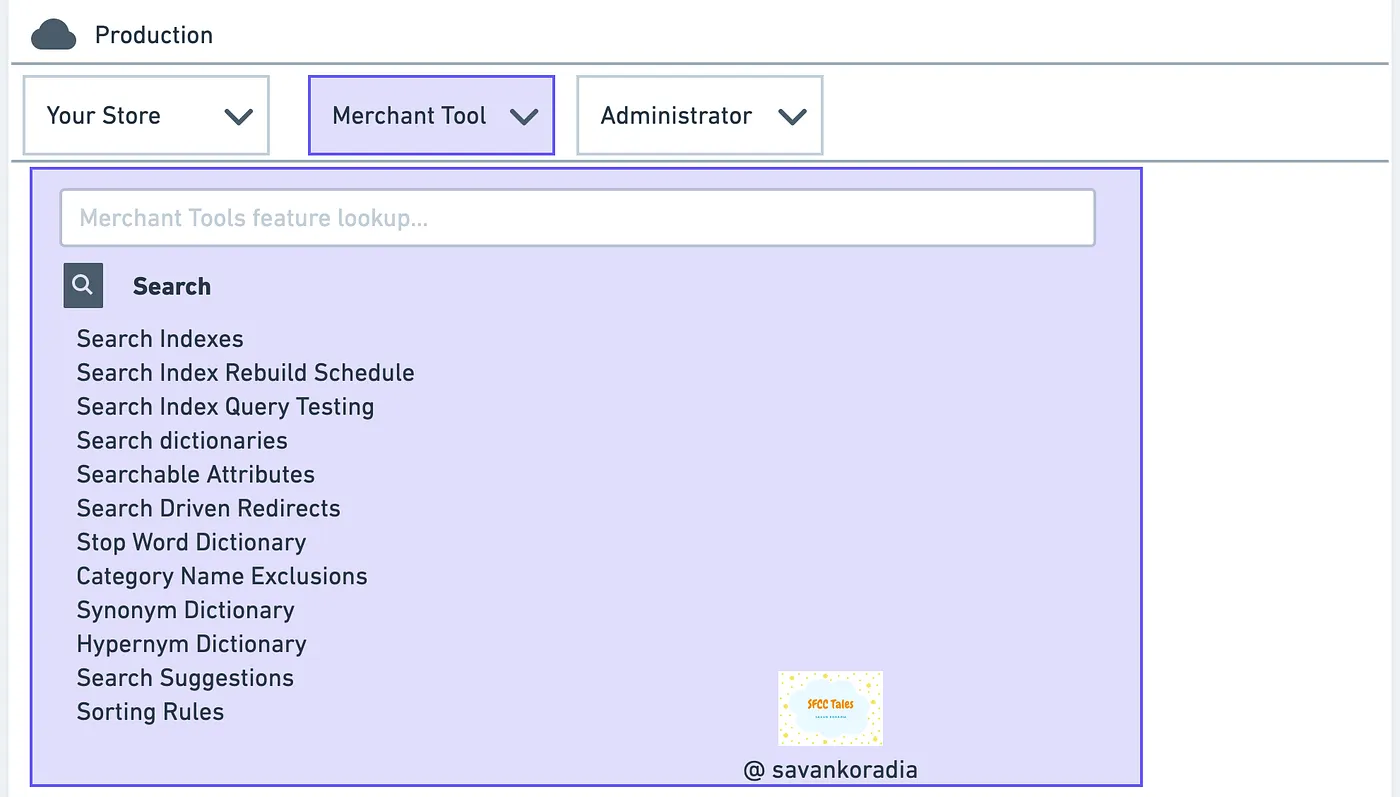
Steps to Find Search Indexing in Business Manager
- Select the site in the Business Manager
- Click on the Merchant Tool dropdown menu
- Look for the search menu list as highlighted in the above image.
What Is Included in Search Indexing
There are a few items from the Business manager content included in the Search Indexing to make the storefront more effective and provide faster results.
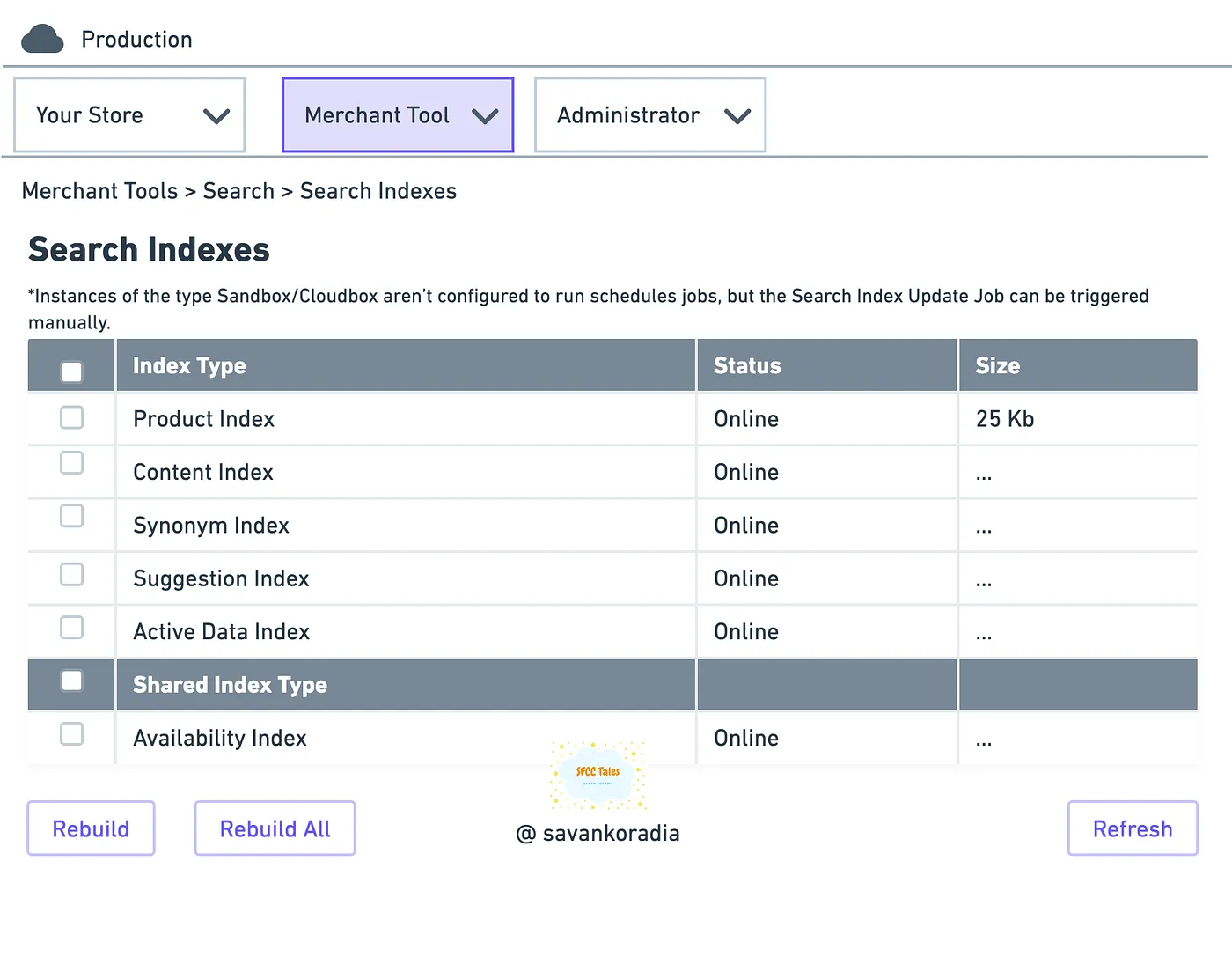
Once you select “Search Index” from the menu list the BM will take you to the page where you can select what can be reindexed.
Search Indexing Configuration and Behavior
Search Indexing can be configured to run automatically on development, staging, or production instances. But on Sandbox instances you would need to run manually via the Rebuild button whenever required.
Search indexing can not be done when there is no catalog assigned to the site in the business manager.
By default, all the indexes are Offline once you import/create a site on any instance. Do the Rebuild to make indexes Online to display content properly on the storefront.
Production and Staging Considerations
On the Production
- Always enable auto reindexing by scheduling time according to the changes applied to the content for production.
- Since the staging site has the all data which is going to replicate on the production, you can replicate indexed data from staging as well.
- After doing manual replication always clear the cache or in the replication always selects to clear the cache after the publishing of the process is done.
- Even after the production instance has the re-indexed data, because of the cache it would not be reflected on the storefront, for that reason it requires clearing the cache.
Troubleshoot
- Your replication failed: you would need to check the logs generated in the SFCC log directory. If the related error information could not be found, you can create a support ticket for the Salesforce Commerce Cloud support team.
- After reindexing data is not reflecting on the storefront: Clear the Cache
- After importing the site to the sandbox any products are not displaying on the storefront: Check if indexes are offline, if offline Run the Rebuild to make it online and clear the cache.
- I updated the product description but the storefront displays old data and I have already cleared the cache: You would need to do re-indexing and clear the cache to have the updated data.