Shield Your Tests: Securing Salesforce Commerce Cloud Test Environments

Introduction
In the Salesforce Commerce Cloud platform, we have various test environments, including SIG, PIG, Sandboxes, CI, Development, and Staging. Failing to adequately protect these test environments can pose significant risks to an organization.
For instance, if your test site content is indexed by search engines, it can result in test data appearing higher in search results than live site content. This can lead to confusion and inaccuracies.
Several factors can contribute to the vulnerability of test environments in Salesforce Commerce Cloud.
Table of Contents
- Common Practices That Increase Risk
- Site Password Protection
- Enabling Password Protection in Salesforce Commerce Cloud
- Temporarily Disabling Password Protection
- Configuring Robot Settings
- Useful Links
Common Practices That Increase Risk
Two common practices that can make test environments vulnerable are:
- Removing password protection: This allows unauthorised access to the test environment, potentially exposing sensitive data.
- Allowing robots to crawl the test environment: This can lead to test data being indexed by search engines, as mentioned earlier, which can cause confusion and inaccuracies.
Site Password Protection
When creating a new site in your test environment, it’s crucial to enable password protection, as the default is always without password protection. Without this security measure, your site becomes vulnerable to search engine crawling and indexing, potentially exposing sensitive data.
It’s essential to establish a password for all sites and regularly review and update these passwords, especially in organizations where multiple individuals have access to the test environment.
Enabling Password Protection in Salesforce Commerce Cloud
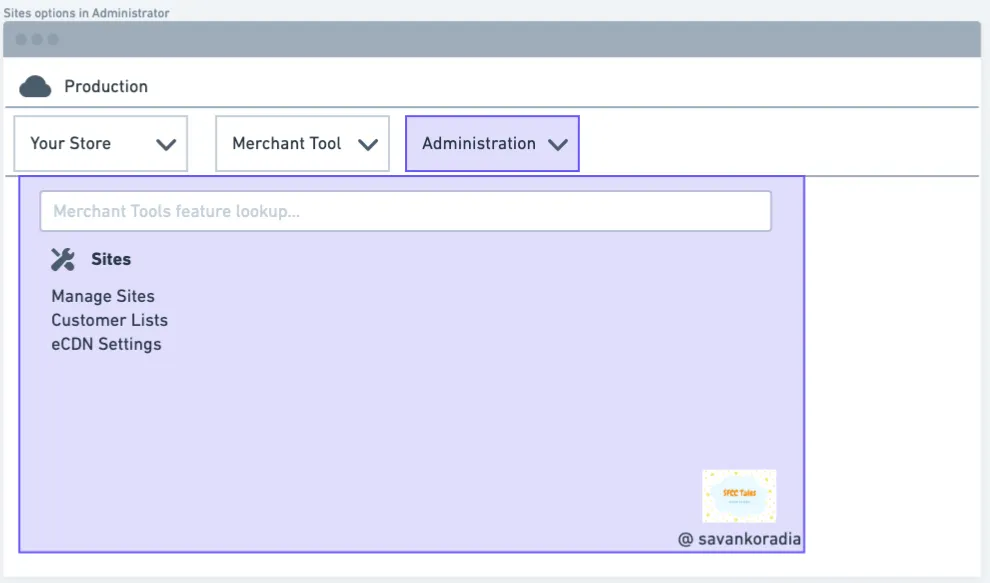
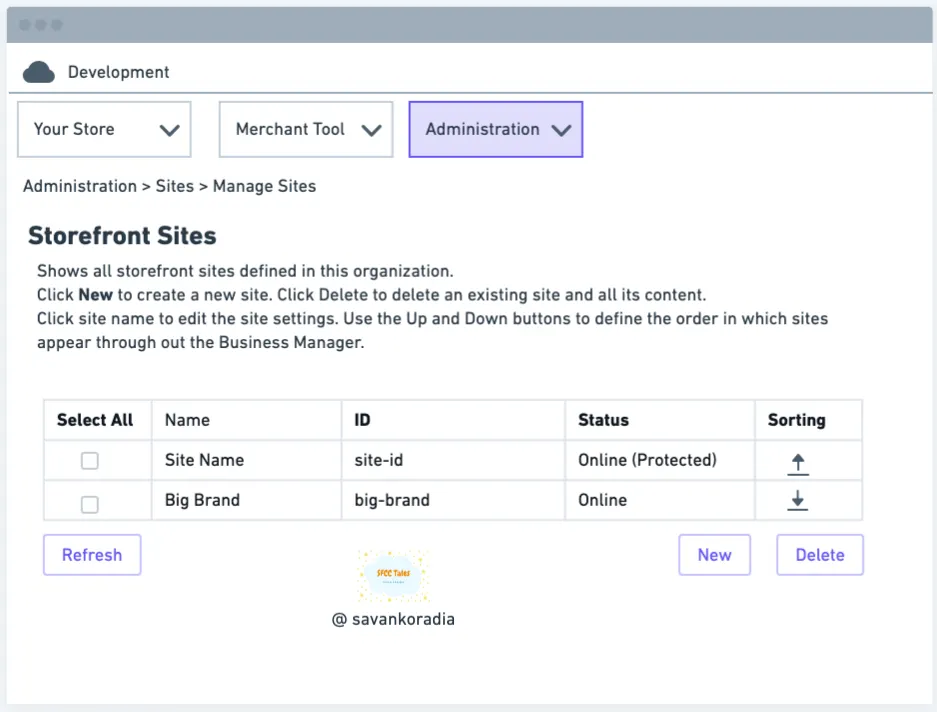
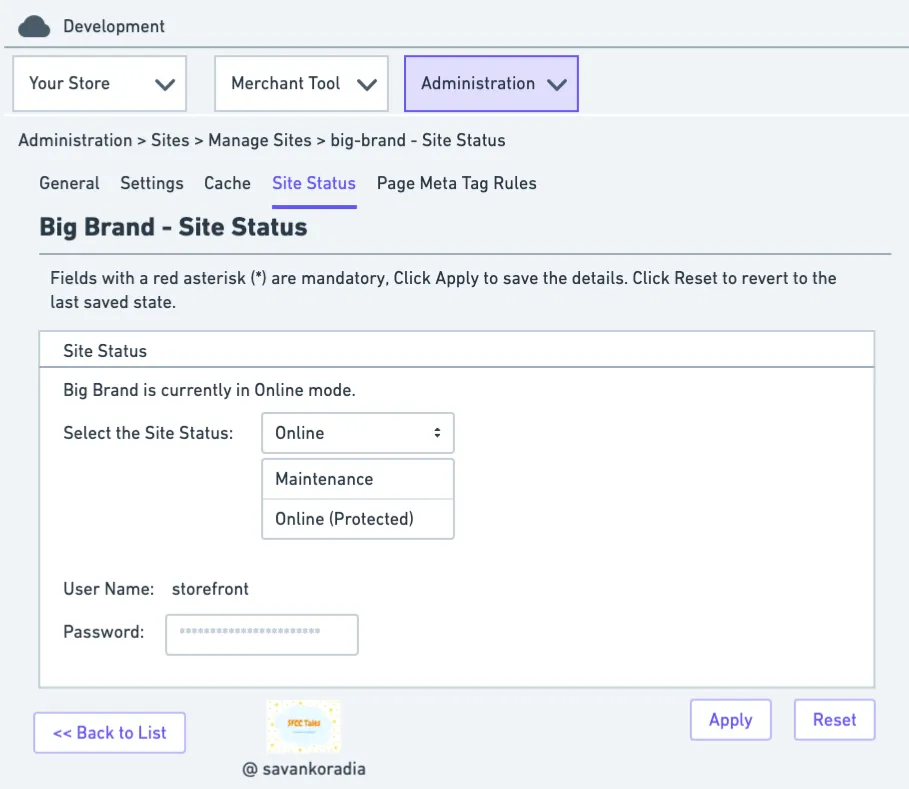
To enable password protection for a site in Salesforce Commerce Cloud, follow these steps:
- Navigate to: Administration > Sites > Manage Sites
- Select the desired site.
- Go to: Site Status
- Choose: Online (Protected) from the dropdown menu.
- Enter a strong password.
Once password protection is enabled, anyone attempting to access the test URL will be prompted for HTTP authentication. They must provide the correct password to access any links or data within the site.
Temporarily Disabling Password Protection
While password protection is generally recommended for test environments, there may be specific scenarios where it’s necessary to temporarily disable it for testing purposes. For example, when integrating with third-party services like payment gateways, you might need to provide the test environment URL without password protection.
Configuring Robot Settings
If you temporarily need to disable password protection for specific testing purposes, it’s crucial to prevent search engine robots from crawling and indexing your test environment. This can help protect sensitive data and prevent confusion.
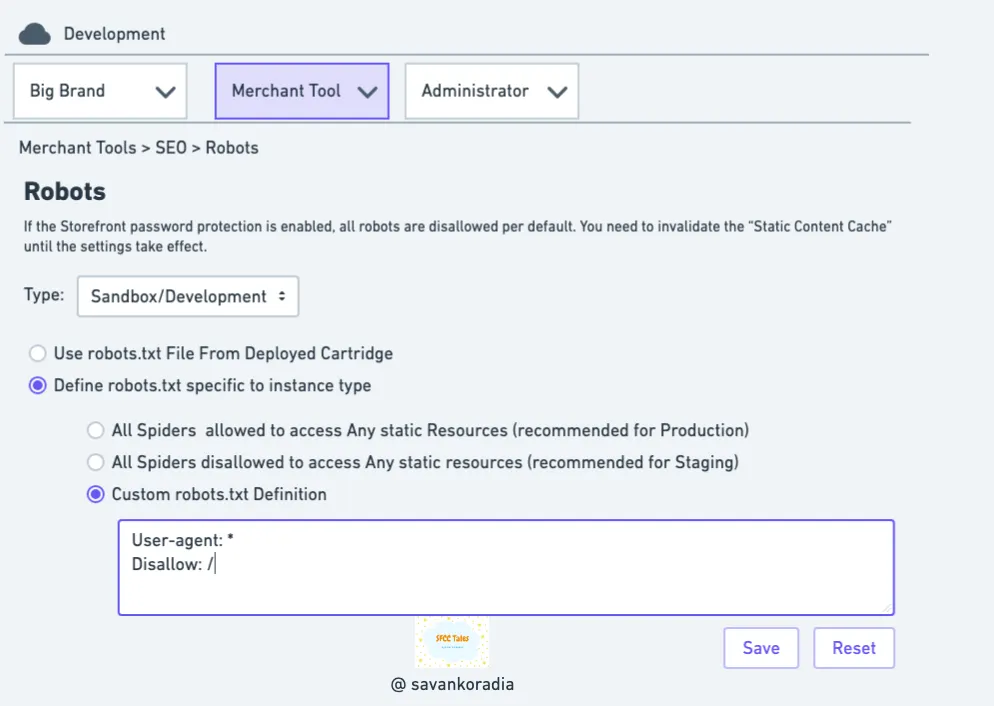
To update the robots.txt file on your test environment:
- Navigate to: Merchant Tools > SEO > Robots
- Select the appropriate type: Sandbox/Development or Staging
- Check the following options:
- Define robots.txt specific to instance type
- Custom robots.txt Definition
By configuring robots.txt appropriately, you can restrict access to your test environment while still allowing necessary testing activities.